

USING THE GSD BRAND
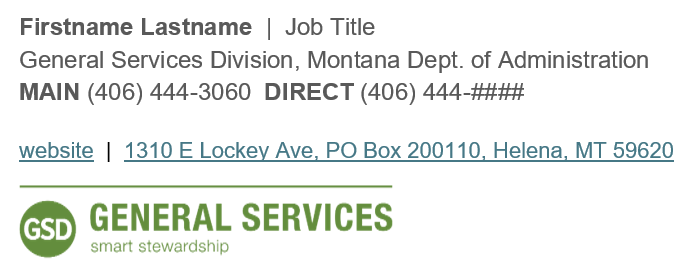
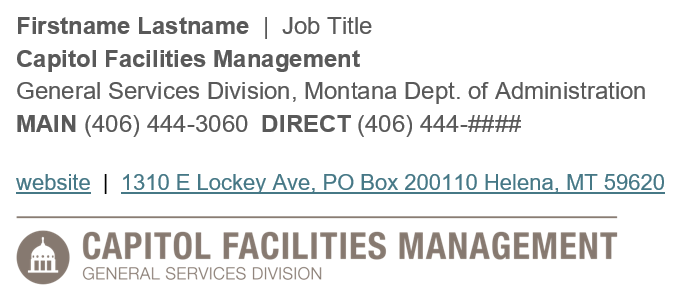
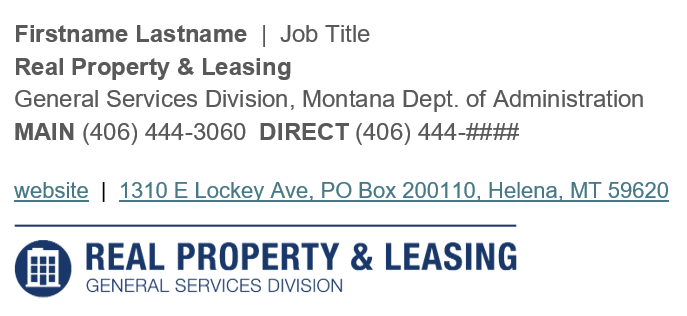
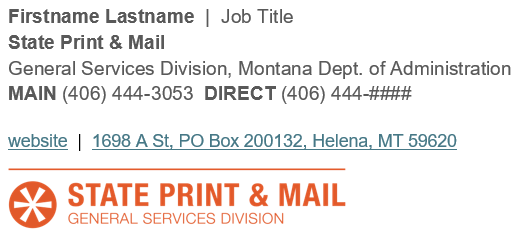
Email Signatures
UPDATING YOUR EMAIL SIGNATURE:
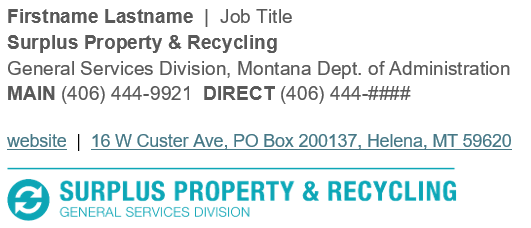
Desktop Outlook Users: To create a new GSD-branded email signature:
- Download the Outlook email message template zip file
- Right-click the file and select "Extract All"
- Select a file location
- Open the file, and copy and paste it into a new signature on your desktop or mobile Outlook app. Then edit and enter your information in the required fields (name, job title, desk phone number).
Office 365 Users (accessing and using Outlook on your internet browser): Please have your supervisor or co-worker email you. Copy and paste the email signature in the email into your Office 365 settings. Then update and enter your information in the required fields (name, job title, desk phone number).